DRMN · Cloud digital signage management

Put your screens to work.For promotion and communication.

Promote products, explain services, and share team or event information. DRMN brings screen content across locations into one place, with a straightforward dashboard and connected AI tools to help your message reach the people who need it.

Every space has a message worth sharing.

Help people discover products and services

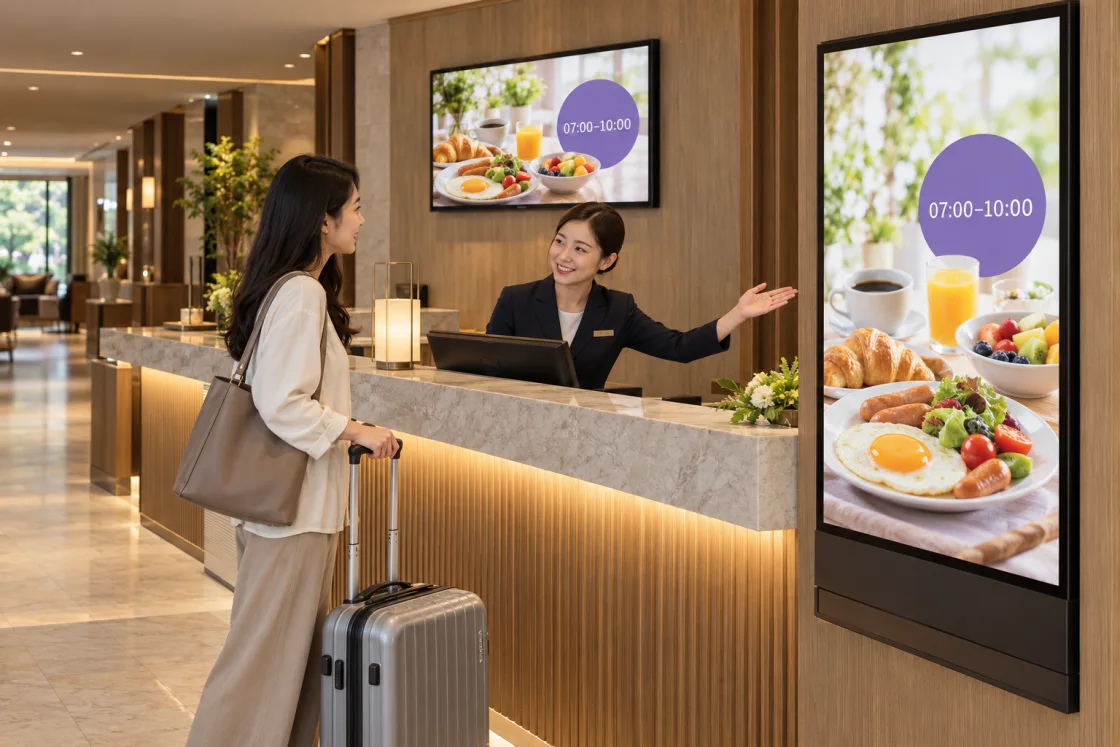
A retail launch, restaurant menu, hotel breakfast or fitness class: introduce what matters at the right place and time, helping customers and visitors understand their options.

Start with one screen, or manage content across several locations.

Keep people informed where they are

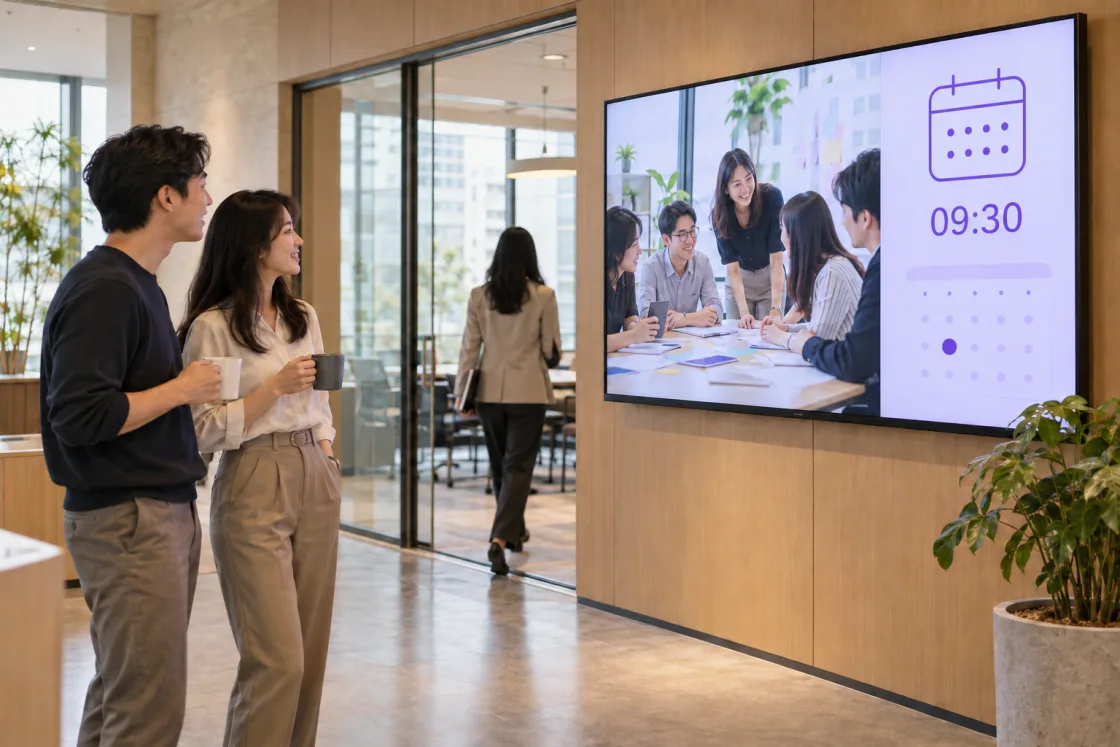
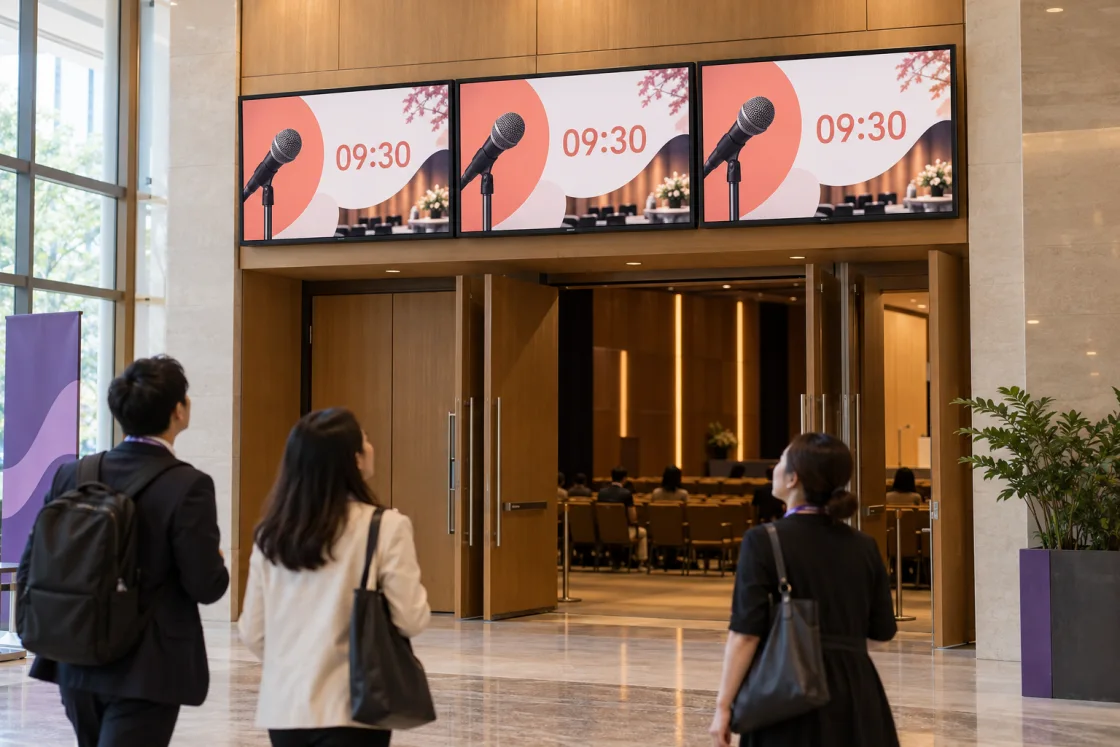
Explain services at reception, share team updates across offices, or present event information at a venue. Give people relevant information and reduce repeated explanations.

Manage shared content centrally, with variations for different locations and times.

Give brand partnerships a clear plan and record

Alongside your own content, use DRMN Ads to manage partner advertising. Connect locations and time slots with playback records, making delivery easier for partners to review.

Suitable gaps in an ad loop can also carry your own promotions and service information.

DRMN StoreManage your own promotions, service information and notices across locationsExplore your content workflow DRMN AdsManage partner advertising, from playback planning to reportingExplore partner advertising

New to DRMN? Start here.

Digital signage: uses, equipment and getting started
Where can I use DRMN?

If you regularly update images, videos or information on screens, start by exploring DRMN content management. Use DRMN Store for retail and restaurant promotions, hospitality services, team updates or event information. Explore DRMN Ads for partner advertising, playback records and report delivery. Equipment and any special integration needs must be confirmed before setup.

Explore DRMN StoreExplore DRMN Ads
How does content get from the dashboard to an on-site screen?

You arrange content and times in the management dashboard, or CMS. Playback software at each location, called the Player, connects to receive published schedules and download media, then plays them on the screen. Manage routine content centrally and reduce on-site updates.

See how the dashboard and Player work together
Can I use DRMN without AI?

Yes. Use the dashboard for everyday tasks. For repeated changes across locations or weekday and weekend schedules, connect an authorized external AI tool to help prepare the plan. Either way, review the content and timing before publishing.

See how AI helps with scheduling

Start with your message.
Plan it through conversation.

Tell AI what to show, where and when. It helps organize the plan for your review before publication. Spend less time repeating settings across locations and dates, and more time on the message itself.

Explore connected AI tools

Coffee-shop product launch example · Connected external AI tool

01Describe the plan once

You

Run the new latte at Xinyi, Zhongshan and Daan from Nov 2–8. Weekdays 11–14 and 17–20; weekends 10–21. Prepare it for publishing.

AI assistant

I found “New latte” and prepared the times for all three stores. Here is the plan to review.

Describe three stores and their different hours once, then focus your final review on the creative and promotion.

02Review the whole plan

Review summary in the AI conversation

New latte

Campaign dates
Nov 2–8
Locations
Xinyi, Zhongshan, Daan
Weekdays
11–14 / 17–20
Weekends
10–21

Awaiting your approval · Not published

03You confirm publication

How do I confirm publication?

Approve publication in the AI tool’s confirmation dialog. If the tool cannot show a dialog, enter the 4-digit code for that action.

One launch, timed for each store.

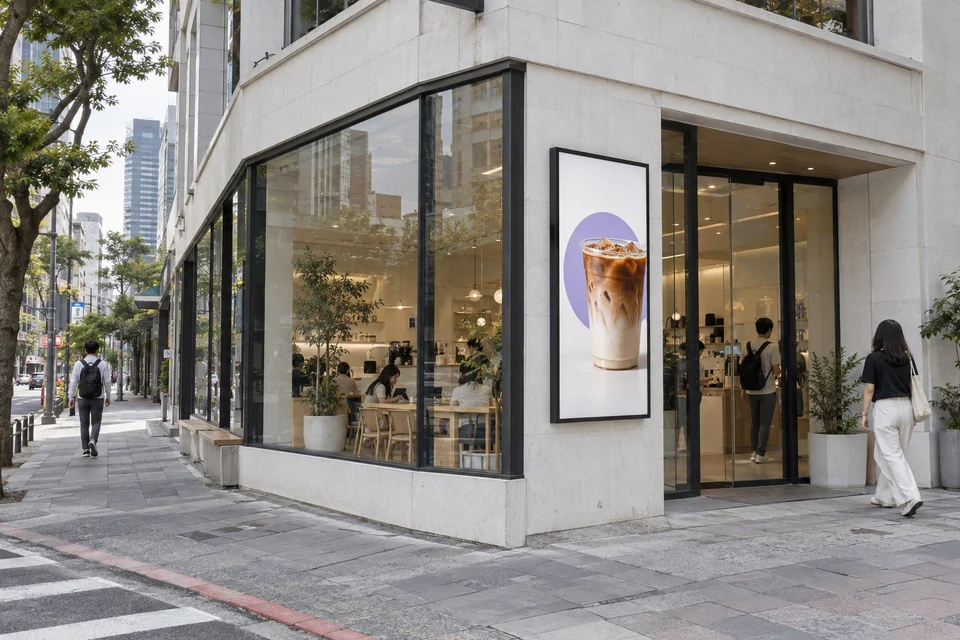
XinyiStreet-corner store
Illustration: the white-stone Xinyi street-corner cafe shows the new latte on a portrait screen at its entrance.
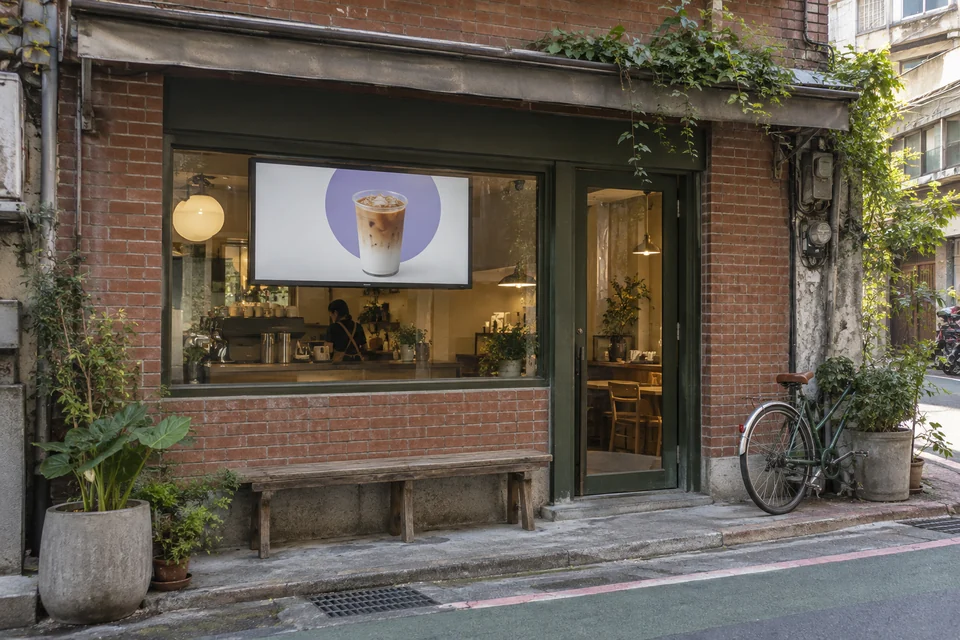
ZhongshanLane-side store
Illustration: the red-brick Zhongshan lane-side cafe shows the new latte on a landscape screen in its window.
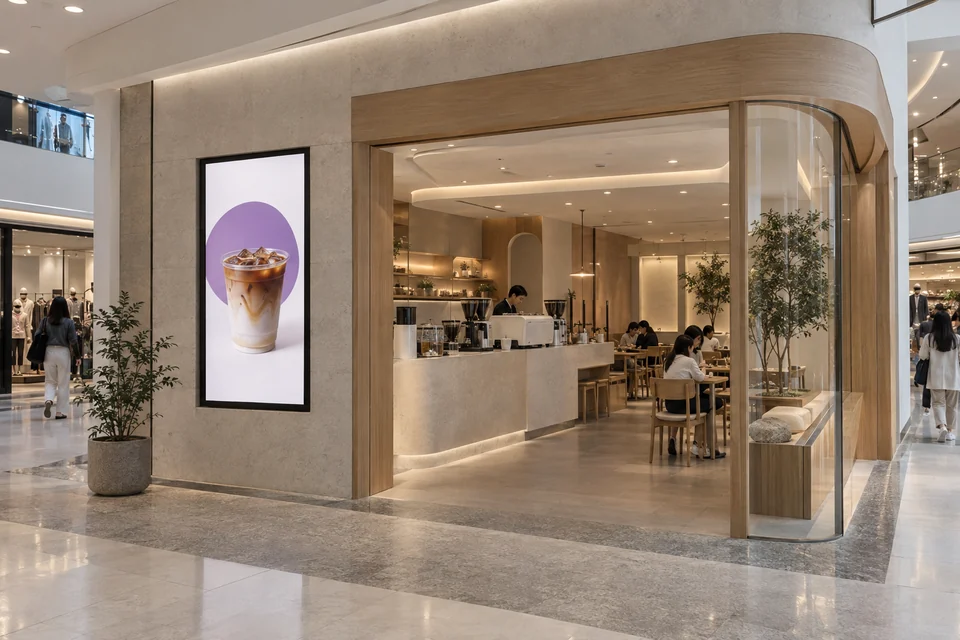
DaanShopping-mall store
Illustration: the curved wood frontage of the Daan mall cafe shows the new latte on a portrait screen at its entrance.

The launch runs at Xinyi, Zhongshan and Daan during the weekday and weekend hours you arranged.

When do published changes reach the screens?

Players need to connect, receive the schedule and download media. Offline devices apply changes after reconnecting and syncing; publishing does not instantly update every screen.

Illustrative stores and playback scenes, not customer locations or live monitoring.

Explore conversations for store hours, temporary notices and unused ad time
Scheduling example

DRMN Store / DRMN Ads · Store hours and notices

Tell AI what you want to play
  1. You

    Nov 2–8: run the new latte at Xinyi, Zhongshan and Daan. Weekdays 11–14 and 17–20; weekends 10–21.

  2. AI assistant

    Use “New latte” from the media library on all screens at these three stores?

  3. You

    Yes. Show me the plan first. Do not publish yet.

  4. AI assistant

    The shared campaign and weekday or weekend hours are ready to review. Nothing has been published.

The plan to review

Draft · Not published

Nov 2–8 · Xinyi, Zhongshan, Daan · All screens at each store

ContentTimingMode
New latteWeekdays 11–14 / 17–20; weekends 10–21Scheduled playback
Which screens and campaigns are affected?

All three stores share these campaign dates and hours. This example is still a draft. Review the content and locations before confirming publication.

These examples have not been published. Confirm publication in your external AI tool’s confirmation dialog. If it cannot display one, reply with the 4-digit code for that publishing action.

Illustrative external AI conversation and review summary. These website examples cannot publish to real screens.

You shape the promotion. AI helps organize the plan.

Use a connected AI tool to find content, plan times across stores or adjust a campaign. You can also work directly in the dashboard. Either way, you decide what goes on screen and when to publish.

Which AI tools can I connect, and how do I approve changes?

Connection guides are available for Codex, Claude Code and OpenCode; Antigravity needs an environment check. Authorize access first so AI can work within your account permissions and plan. Publishing requires a confirmation dialog or the 4-digit code for that action.

Read the connection guide

Ask what is scheduled, not just how to change it.

See next week’s plan before the next changeover.

Ask AI to summarize published campaigns and store hours. Spot a missing promotion or a time that needs changing before the week begins.

Check on a store screen before making a trip.

Ask which screens are offline and what they last reported playing. Get context before asking store staff to help.

Can I return to an earlier campaign version?

Published campaigns keep a version history. Ask AI to find an earlier version, review its content, stores and times, then confirm publication instead of rebuilding it from memory. Restoring a version still requires confirmation.

DRMN StoreYour content, in step with each location.

Promote products in a store, explain hotel services, share office updates or present event information. Use DRMN Store to plan content and times across locations, with a shared plan that also allows for local needs.

Coffee-shop example: see how a campaign is arranged
Walkthrough · Sunscreen launch

Campaign name

Sunscreen launch

Choose from the media library

  • Product videoVideo · 1 min 10 sec
  • Product posterImage · Show for 10 sec

Playback order

  1. Product video
  2. Product poster

You can also use a saved playlist.

Videos and images. One campaign.

Choose media and arrange the order, or reuse a saved playlist.

Simplified from the product workflow. Content and settings are examples.

Extend a promotion as your store adds screens.

Target a whole location so entrance, counter and newly added screens can follow the same campaign. Bring new display positions into your existing promotion plan with less individual setup.

How do whole-store and individual screen targets work?

A location target includes current and future screens at that location. Choose individual screens for exceptions. New devices must connect, sync and download media before they can play the campaign.

One message. The right layout for each screen.

Product promotions, service information and event updates may need different layouts. Put separately prepared landscape and portrait media in one campaign. Screens use the matching version, while dates and locations stay in one place to manage.

  • Shared dates and stores help keep one promotion consistent.
  • Purpose-made landscape and portrait content fits the screens in your store.
Do I need both layouts? What if I only have one?

Prepare landscape and portrait media separately; DRMN chooses by screen orientation rather than generating another layout. With one version, all screens can use the same content. Different proportions may leave borders, so check the result before publishing.

Simplified review of one sunscreen campaign with landscape and portrait content, one shared schedule, dates and two target locations, checked before publication

Manage dates, locations and withdrawal in one place.

Simplified campaign review with example content and settings. Each layout’s media must still be prepared.

Keep the main message together across one space.

DRMN Store / DRMN Ads · Synced playback at one location

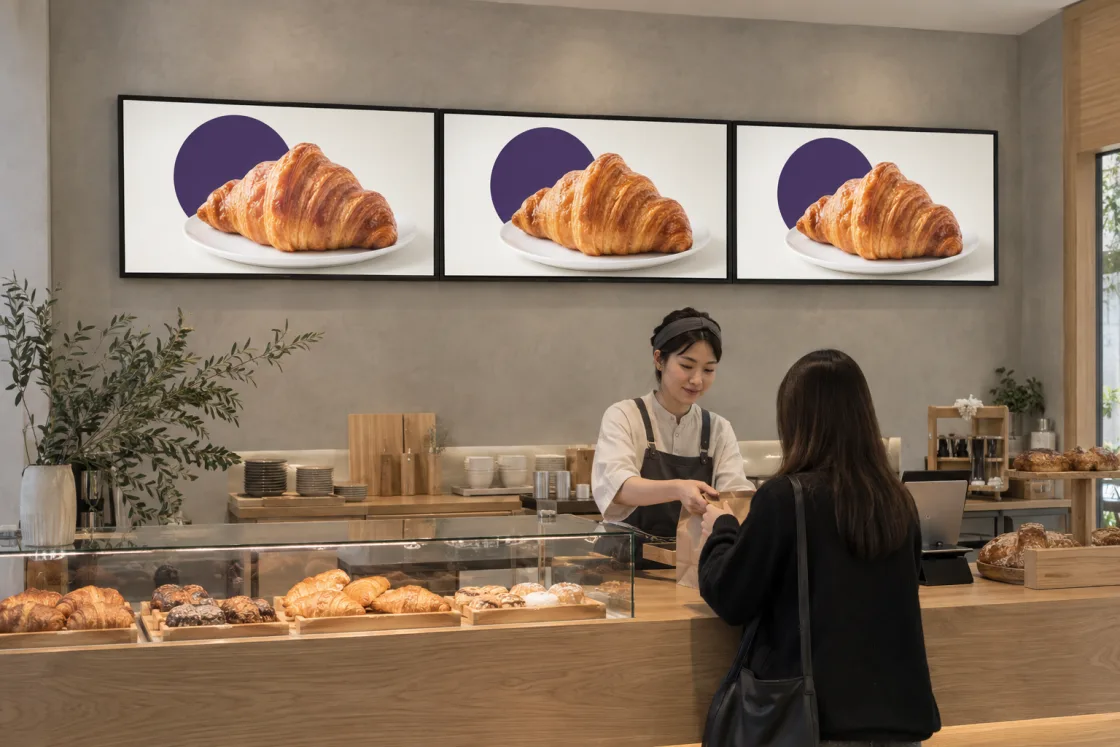
From a lobby or waiting area to an event entrance, supported screens can move to the next item together. People see a consistent message as they move through the space. The bakery promotion below is one example of playback at a single location.

Bring the same message together across a space.
For menu boards, window displays or event spaces where several screens need to show the same content.
Use the on-site network without an extra sync box.
Supported players coordinate over Wi-Fi or wired networking, without a separate sync controller or cables between screens.
Downloaded content keeps playing through a short outage.
Downloaded images and videos keep playing during a brief network interruption. Players check their timing again after reconnecting.
Which players and schedules can stay in sync?

Use supported players in the same store with matching content and timing. New plans apply after players receive the schedule and media. Offline playback is limited to downloaded images and videos; web pages still need a connection. Players check the system time again after reconnecting, but playback may not fall back into sync immediately. This feature does not provide video-wall tiling or frame-by-frame synchronization. Results depend on devices and the network.

Each campaign in a sync group must finish its playlist before moving to the next campaign. Adding a campaign that takes turns one item at a time makes screens play independently.

For menu boards, storefront displays, lobbies or exhibition screens showing the same content at one location.

Three screens above one counter in the same bakery each show a complete croissant promotion. Illustrative synced-playback scene.
One store. Three complete displays. Promotions change together. · Illustrative scene

Tell the product story. Give featured items more screen time.

Keep a video and poster together to introduce a product, alternate offers with other campaigns, or give a featured item extra appearances. Choose how content plays around the purpose of your promotion.

DRMN Store plays each campaign’s playlist in full. Alternating items, adjusting turns per round and fixed-duration slots are advanced DRMN Ads features.

DRMN Store / DRMN Ads

Keep your product story together.

Play the launch video, then the product poster, before another campaign begins. Give a connected story room to finish.

Order within one loop

  1. Product video
  2. Product poster
  3. Offer video
  4. Offer poster

DRMN Ads

Alternate new products and offers, giving both a place.

Alternate a product launch with an offer, then continue with each campaign’s next item on the following loop. Keep both messages in rotation and update their content separately.

Loop 1

  1. Product video
  2. Offer video

Loop 2

  1. Product poster
  2. Offer poster

DRMN Ads

Give your main promotion an extra play each round.

Increase a featured product’s appearances per loop to give the item you most want to promote more opportunities on screen.

Order within one loop

  1. Product
  2. Offer
  3. Brand
  4. Product

DRMN Ads

Use equal-length slots to plan ad time.

When partner ads have an agreed length, use equal-duration slots to make the available advertising time easier to allocate.

Location setting: a 60-second loop

  1. Brand A · 15 sec
  2. Brand B · 15 sec
  3. Brand C · 15 sec
  4. Brand D · 15 sec
What if a video isn’t 15 seconds long?

Fixed slots use the configured duration: longer videos are cut short, while shorter videos hold their final frame until the slot ends. Prepare content that fits the slot length.

A loop is one round through the scheduled campaigns. Order and durations are examples; playback frequency is not an audience count.

Make service changes clear before customers need to ask.

DRMN Store / DRMN Ads · Temporary notices

Prioritize a clear notice when service hours change, dine-in pauses or equipment is under maintenance. Let customers see which services are available and help staff guide them. Regular applicable scheduling resumes after the notice ends.

11:00–12:00 · Equipment maintenance

Dine-in paused. Takeaway available.

When the notice ends, scheduled campaigns resume.

At a restaurant entrance, a screen announces equipment maintenance from 11:00 to 12:00, with dine-in paused and takeaway available. A staff member points arriving customers to the notice. Illustrative scene.
Arriving customers see the service change first: dine-in is paused, but takeaway is available. · Illustrative scene
  1. Before 11:00Regular campaigns play
  2. 11:00–12:00Notice takes priority
  3. After 12:00Applicable schedule resumes
When does a notice apply, and what happens afterward?

After connecting, syncing and downloading the notice, players apply it at a playback transition. When it ends, campaigns scheduled for that time continue. This is not a guaranteed instant emergency broadcast.

Retail media

DRMN AdsConnect your screens with relevant brand partnerships.

Manage partner content relevant to the people visiting your space. Use DRMN Ads to plan locations, dates and times, then review player reports and share campaign records. Give each partnership a clear plan and delivery record.

RoadmapOpen up more ways for brands to advertise in stores.

Planned connections would bring ad content and booking requests from external platforms into DRMN, reducing manual handoffs while keeping stores in control of their content and schedules.

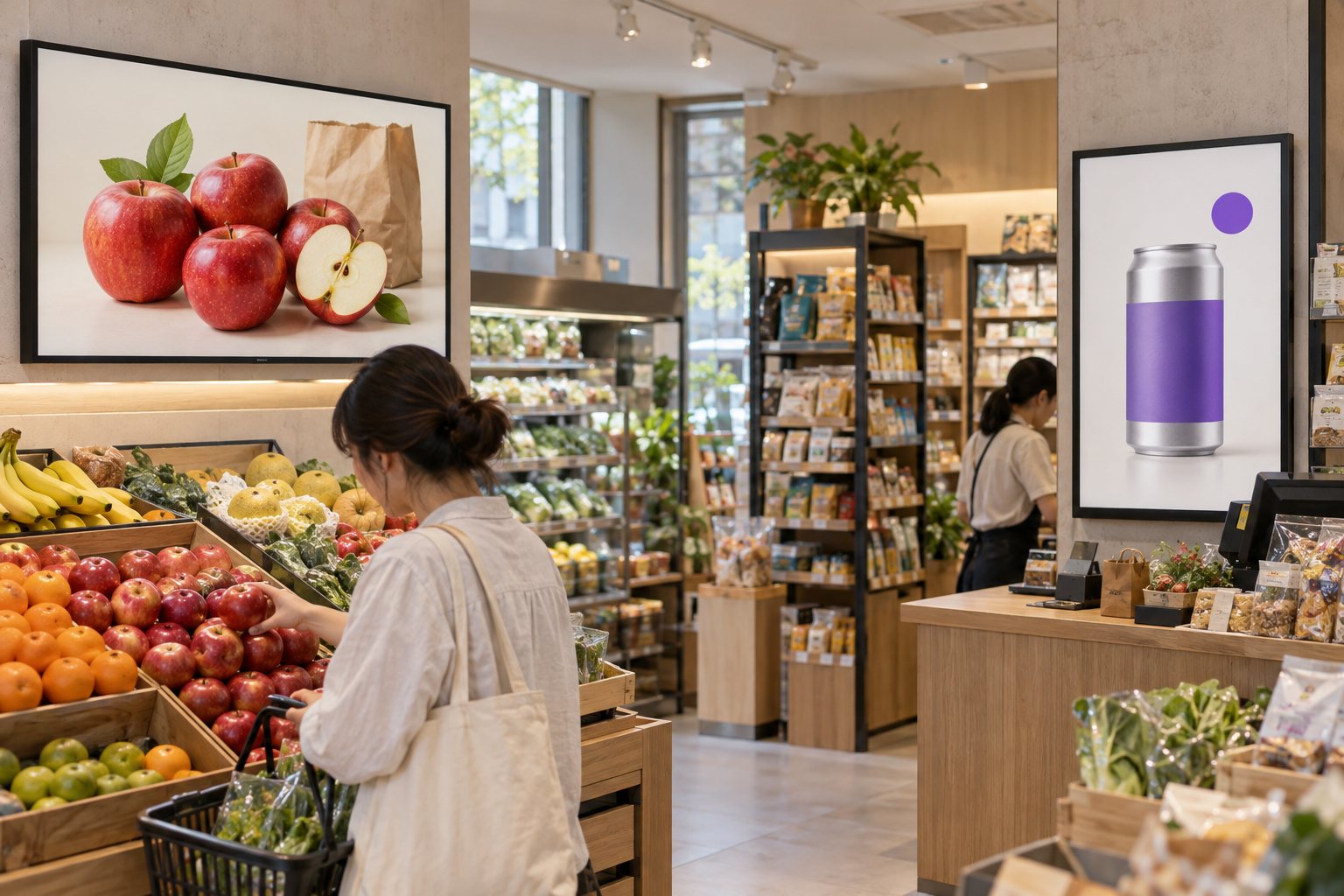
In one grocery store, the landscape screen on the left promotes the store’s fruit, while the portrait screen on the right shows a partner’s beverage ad. Illustrative retail media setting.
Left: the store’s fruit promotion. Right: a partner’s beverage ad. · Illustrative setting

Turn an ad request into a schedule and a report.

Use DRMN to schedule content in stores, collect playback records and deliver the report. Keep the work for one campaign together instead of carrying its details between separate tools.

  1. External advertising platformsProvide advertising requirements

    Planned connections would receive ad orders from buying or selling platforms (DSPs/SSPs), or third-party systems where brands book ads themselves.

    Automatic platform connections · Planned

  2. DRMN Ads · CMSPlan stores and times together

    Keep a partner ad campaign’s stores, dates and hours together.

  3. DRMN Player · In storeLet each store follow the plan

    Store players receive the content and schedule, play it and report playback.

  4. DRMN Ads · ReportsGive your partner a clear report

    Check the records, download a spreadsheet or share this campaign’s report link.

The dashed connection is planned. The next three steps show DRMN’s workflow: schedule ads, play them in stores and provide playback reports.

Follow one partner campaign from planning to reporting.

Simplified illustrations based on system fields. Campaigns, stores and figures are examples, not actual advertising results.

01

Plan partner ads for the agreed stores and time slots

Plan stores, dates and time slots around a partner’s launch or promotion. For example, schedule a sunscreen campaign at lunchtime in two stores, coordinating the placement with store operations and later changes.

Need to change stores, hours or playback frequency?
  • Target whole locations or specific screens, with weekday, weekend or multiple time windows.
  • Play a campaign in full, let campaigns take turns one item at a time, or give a priority campaign more plays. Configure equal-length ad slots in the store’s location settings when needed.
  • Review content, timing and target screens before publishing. Players apply the change after syncing.

Store scheduling example

Partner brand · Sunscreen launch

Campaign dates
2026/11/02–11/08
Time window
Mon–Fri · 11:00–14:00
Selected screens
Xinyi · Entrance screen
Zhongshan · Entrance screen
Playback strategy
One item per loop · 1 play

Both locations: 15-second slots, 60-second loops

Review content, timing and screens before publishing.

02

Give partners a clear account of playback

Review plays, completed plays and total playback time across stores. Give partners concrete playback records to discuss and a reference for planning the next campaign.

What do the playback numbers mean?
  • View records by date, screen and media item. Filler content is counted separately from other playback.
  • A completed play ran for its planned duration. Records are player-reported, not audience counts or third-party verification.
  • Records update as players report. Offline records are uploaded after reconnection.

Proof-of-play example

Partner brand · Sunscreen launch

Report date: 2026/11/02

Plays
120
Completed plays
118 98.3%
Play time
29 min 50 sec
Selected screensPlaysCompleted plays
Xinyi · Entrance screen6059
Zhongshan · Entrance screen6059

Player-reported playback, not audience counts.

Example figures · Not actual campaign results

03

Make this campaign’s playback report easy to review

Give the brand a link to this campaign’s results. They can view playback by day, screen and media item without requesting a dashboard account, or download a spreadsheet for further work.

Who can view a report, and can I stop sharing it?
  • The link covers this campaign only, excluding other campaigns, location addresses and account details.
  • Anyone with the link can view without signing in. Give it only to the people you want to share with.
  • Set an expiry date or revoke the link to stop sharing. Detailed and daily CSV exports are also available.

The report your partner sees

Partner brand · Sunscreen launch

Report date: 2026/11/02

Plays
120
Completed plays
118 98.3%
Play time
29 min 50 sec

Check results by date, screen and media item, or download a CSV spreadsheet file.

Example figures · Not actual campaign results

Use suitable ad gaps to tell customers more about your store.

DRMN Ads · Fill unused ad time

Membership offers, store services and your brand story all deserve a place. With DRMN Ads, fill suitable gaps in an ad loop with content that fits, supporting partner advertising and your own promotions on the same screens.

What fits as filler, and how is the available time calculated?

Set the total duration of a loop so the system can add content that fits the time left. Filler may be skipped if the content is too long or the gap too short. Without a loop duration, it plays only when no regular campaigns are scheduled to play.

See how AI can help prepare filler
A supermarket shopper looks at a member-benefits display, illustrating a store promotion shown in available ad-loop time
Use the available 20 seconds for your member promotion. Illustrative scene.

A 60-second loop, explained

40 seconds of ads + 20 seconds of member promotion

Scheduled ads

  1. Ad A20 sec
  2. Ad B20 sec
  3. Available time20 sec

With store promotions added

  1. Ad A20 sec
  2. Ad B20 sec
  3. Member promo20 sec

Playback order and durations are illustrative. Backup content must fit within the time left in that loop.

Keep screen content in step with the store’s day.

Downloaded content can continue through a temporary outage. Remote status checks help headquarters support stores, while more even video volume supports a comfortable listening experience. Keep everyday playback supported while staff focus on customers.

Keep downloaded promotions playing through a temporary outage.

Sync images, videos and schedules to the store player. Downloaded content can keep playing during a temporary network outage, keeping product and brand content on screen.

  1. Sync onlineImages, videos and schedules
  2. Download completeSaved on the player
  3. Play through an outageFollow the synced schedule
What can keep playing without a connection?

Downloaded images and videos can follow the last synced schedule. New content or timing changes need another connection and sync; live webpages still need internet access.

Check the screen before making an on-site visit.

See connections and recently reported content across stores in one dashboard. Get context before asking the right store for help, rather than starting every check with a phone call.

Am I seeing a live screen?

Status and content reflect the player’s latest report. Players that support screen capture can also provide a screenshot and capture time. A connection status alone is not proof of playback.

Keep the listening experience comfortable as videos change.

Help reduce volume differences between product videos, staff introductions and brand films from different sources. Support a more consistent listening experience as customers learn about your products.

A clothing-store employee pauses folding clothes to adjust a signage video’s volume with a remote; an illustrative problem scene, not a CMS interface
Changing video volume interrupts the task at hand. Illustrative problem scene.

Different sources. More consistent sound.

Illustrative relative volume of three videos before and after adjustment.
ContentBeforeAfter
New collectionLouderCloser in volume
Staff stylingQuieterCloser in volume
Brand storyMediumCloser in volume

Illustrative volume changes, not measured results.

Results depend on the video and player’s supported capabilities.

Which videos and players are supported?

Video volume analysis must be available, and screen audio must be enabled. Turning volume up also requires player support. Unanalyzed videos receive no automatic adjustment; unsupported adjustments retain the original volume.

Keep your stores moving forward with new features.

CMS · Manage your content

Choose what plays, when it plays and which screens show it.

Sync after publishing
Player · Play at each store

Receive content and schedules, then play them on the store screen.

DRMN continues to improve content management and playback. Supported store players can receive applicable software versions over the network, giving stores a path to new promotion and operational tools with less on-site installation.

  1. New player softwareFeatures and improvements
  2. OTA remote updateGet software over the network
  3. Supported playersInstall a supported version

Update the player software to use compatible new features.

Available features depend on the software version and player capabilities.

Is changing a poster the same as updating the Player?

No. Posters, videos and schedules use routine content sync. OTA updates the playback software itself, bringing new capabilities and improvements to the player.

Which players can receive remote updates?

Available on DRMN-certified Android boxes with update and device-management settings configured. Devices without automatic installation support require someone on site to start and confirm the update. The player restarts during installation.

Is custom feature development charged separately?

Custom feature development is quoted separately based on scope. Player features developed for you can also be delivered through OTA to DRMN-certified Android boxes.

A USB option for on-site needs is planned.
USB playback · Planned

Bring content to a store event on a USB drive, or have another option when no content is ready to play. This feature is planned; supported devices and usage will be announced when it is available.

What would you like your screens to communicate?

Products, service information, team updates, event plans or partner ads? Tell us about your setting and goals. We will contact you when a suitable early-access opportunity is available.

Early access registration

Tell us what you need and hear about relevant early access opportunities.

Join the early access list

Leave your email and needs so we can contact you when early access opens. Cloudflare stores your registration for DRMN early access updates and contact about your needs. We also record campaign source to understand which introductions bring registrations. Your email and form details are not sent to GA.

Use the email where you would like to receive early access updates.

Tell us more (optional)